Adding a new member includes not only getting them on the right list, but also tracking their payments.
If somebody hands you a check with no form filled out, you’ll have to add them from the dashboard and set their expiration date.
Adding New Members
There are 5 steps to this process
Click on Add a new member from the Members screen
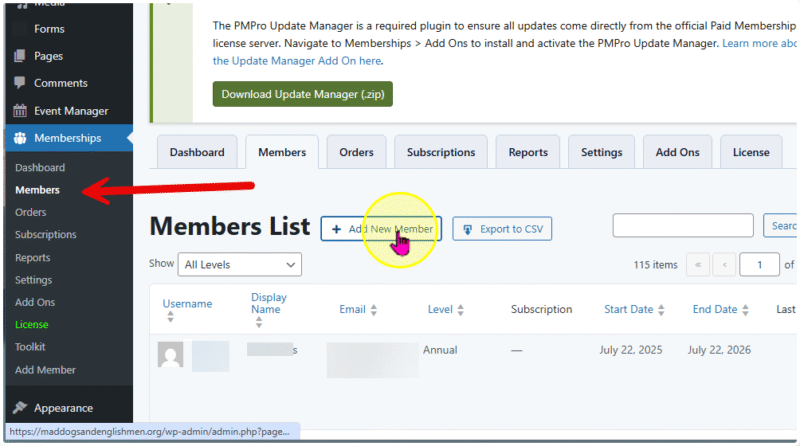
The next screen starts the real sign up process.
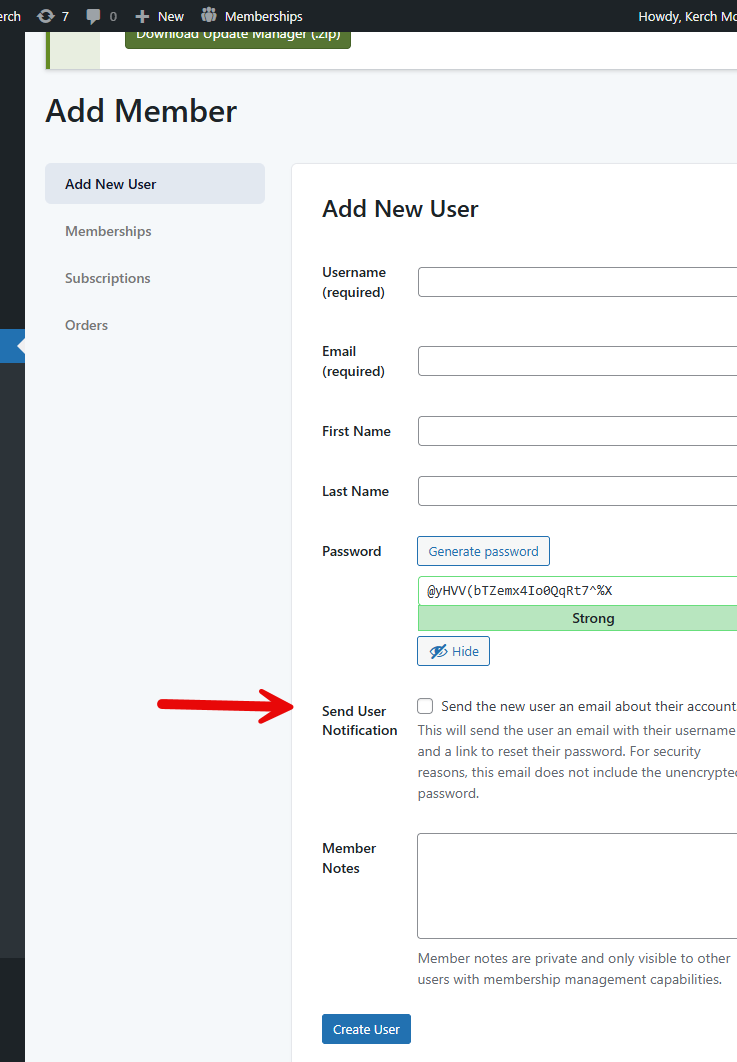
Because you are starting this process, you will set up a user name. I suggest NOT using the email address as a user name. Email addresses change but User Names do not.
Fill in the rest of the information on this screen.
We recommend clicking the box to send the user a link to set their own password.
Notes regarding where this person came from might be useful but will only show to admin looking for the info.
1. Memberships Tab
Next click on Memberships to set the Membership Level
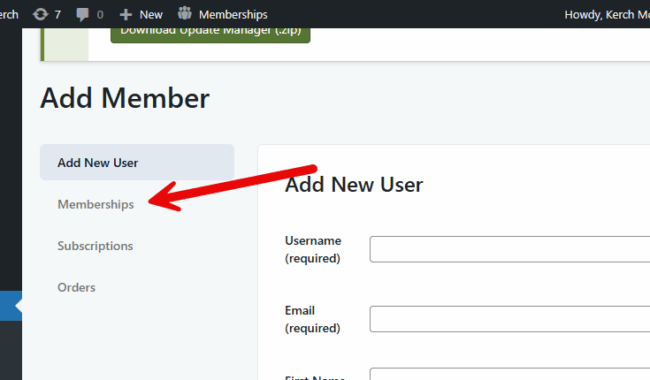
Choose Edit

When you edit the Membership, you’ll confirm the Level and set the expiration date.
You’ll have to do this for ALL memberships (new and recurring) because the system sets renewal at one year.

We’ll talk about setting recurring memberships in another post.
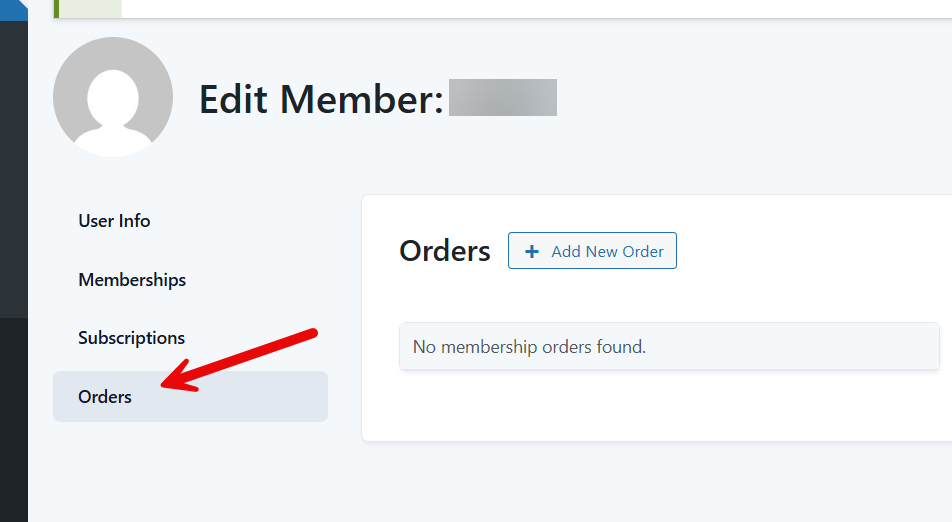
2. Orders: How you keep track of payments.
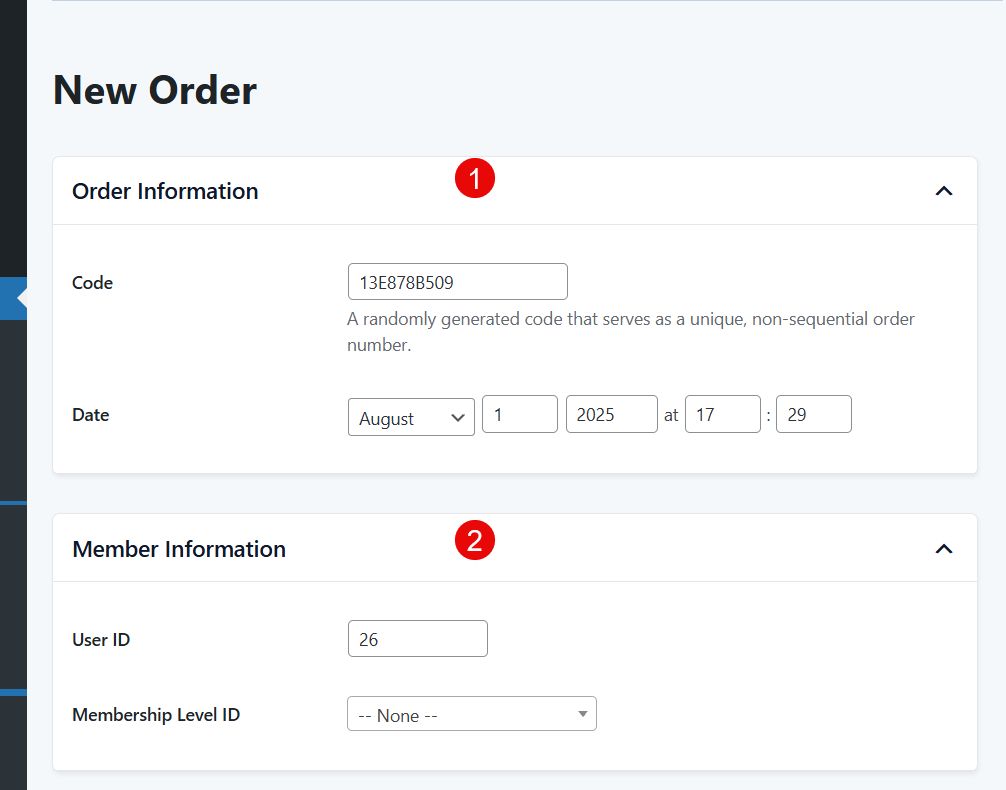
- The Code (below) is set by the system. The date shown is the date that the order was entered.
- User id is set by the system. The Level should be confirmed here.
3. Update the Billing address.
Don’t leave this out. It will show on the member’s profile. But you may need it for other things as well
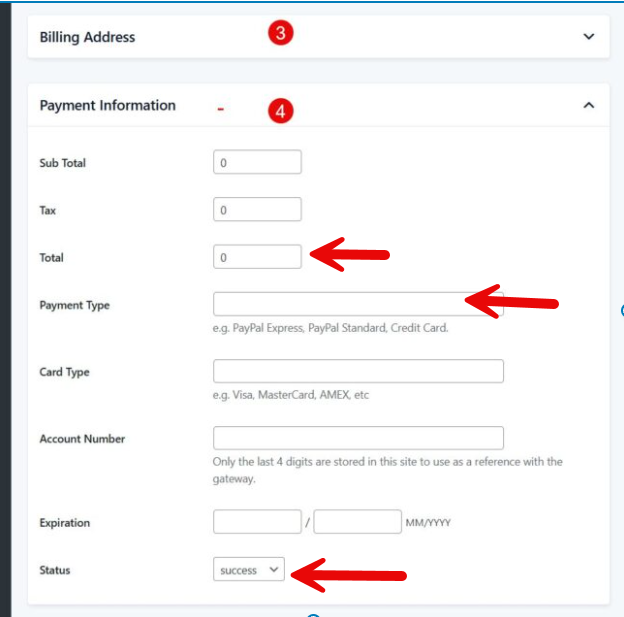
4. Payment information.
Generally the Total and Payment type (check or PayPal) is all that you need here. We recommend NOT saving any credit card information. When you have the check in hand, then click Success.
If a member fills out a form and says they want to pay by check, the Status will be pending until you set it to success. If you don’t do that, the system will believe that the payment never came through and cancel the access to the members only part of the site.
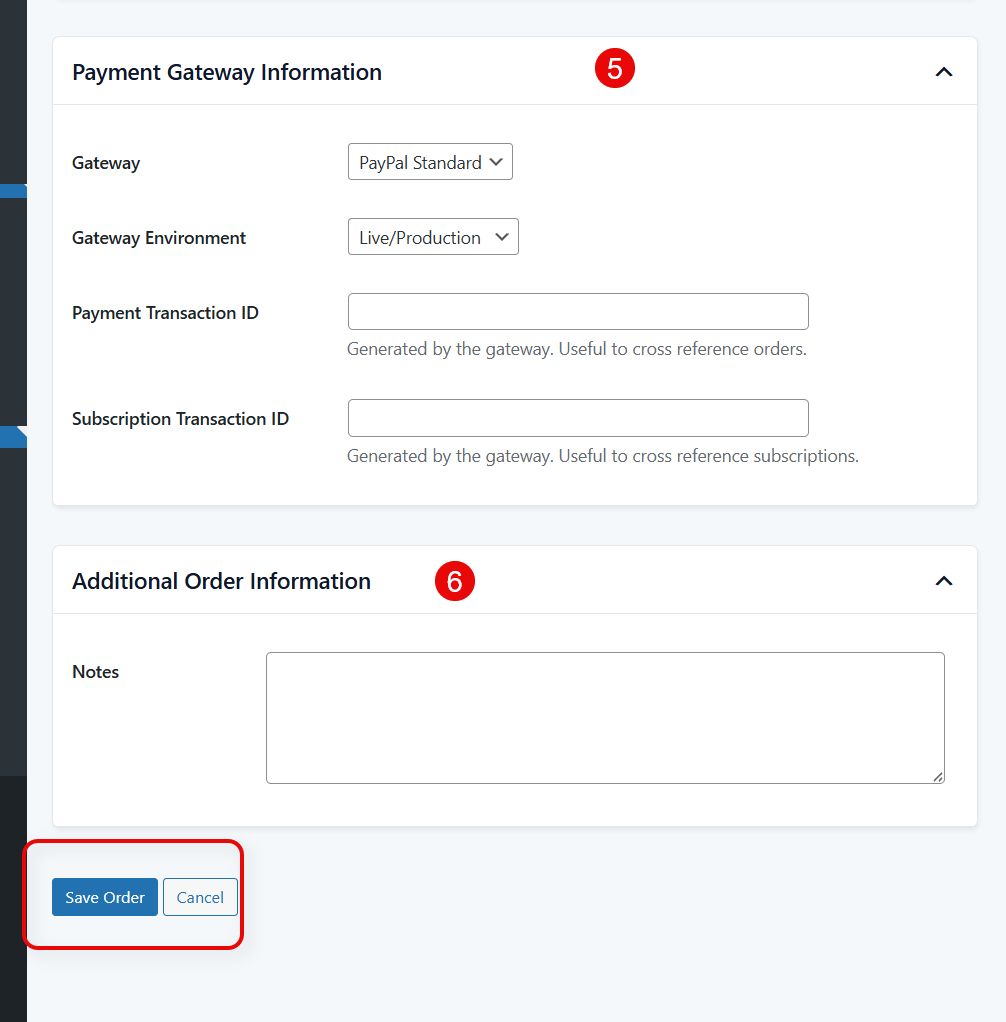
5. Finally the Payment Gateway.
If the payment is by check, there will be no Transaction ID. If the payment is by Paypal, it is useful to copy that information from PayPal and add it here. It’s helpful if there are complications.
6. Additional Order Information:
will only be seen on this screen. Useful to keep track of how you gathered that first payment. (e.g. At xyz car show)
Then click Save Order